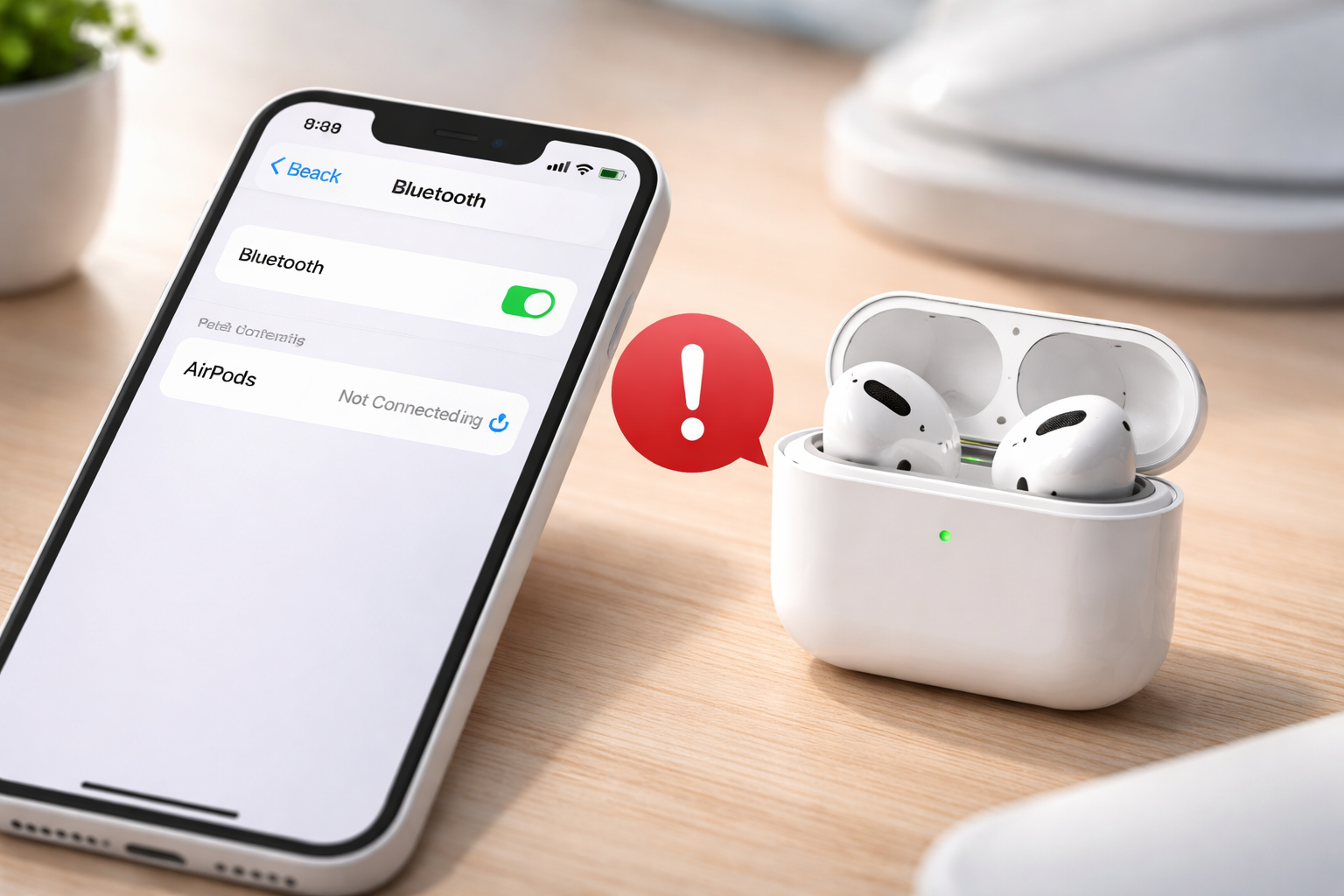
Why Are My AirPods Not Connecting to iPhone? (Fix Guide for “AirPods Not Connecting”)
Nothing kills the vibe faster than popping in your AirPods… and your iPhone acting like they don’t exist. If you’re dealing with airpods not connecting, you’re not alone—especially after iOS updates, device switching, or when the battery is low.
The good news: most AirPods connection issues are fixable in under 5 minutes. Below is the exact order I use to get AirPods pairing again—starting with the quick wins, then moving to the “this fixes 70% of cases” reset, and finally the last-resort options if your iPhone still refuses to cooperate.
Quick Answer (Do This First)
If your AirPods are not connecting to iPhone, start here: charge the AirPods + case for 30 minutes, then toggle Bluetooth off/on, and re-select AirPods as the audio output in Control Center.
If they still won’t connect, Forget This Device and reset your AirPods (setup button hold until amber, then white). That single reset fixes most persistent pairing glitches.
Before You Troubleshoot: Confirm It’s the Right Problem
“Not connecting” can mean a few different things. Identify your symptom and jump to the matching fix:
- AirPods don’t show up in Bluetooth → pairing mode + reset + charging contact check
- AirPods show as connected but no sound → audio output selection + volume + device switching issue
- They connect, then immediately disconnect → low battery + iOS update + Bluetooth glitch
- Only one AirPod connects → charge, clean contacts, then reset
Fix “AirPods Not Connecting” to iPhone: Step-by-Step (In the Right Order)
1) Turn Bluetooth Off/On (Yes, It Works More Than You’d Think)
This clears small Bluetooth handoff glitches—especially after you’ve connected to a Mac, iPad, or car audio.
- Go to Settings > Bluetooth
- Toggle Bluetooth OFF
- Wait 10 seconds
- Toggle Bluetooth ON
If your iPhone sees the AirPods but won’t connect, keep going—this usually means the AirPods need a reset or they’re “stuck” on another device.
2) Charge the AirPods AND the Case (Don’t Skip This)
Low power is one of the most common causes of airpods connection issues. And here’s the annoying part: the AirPods can be low even if you “think” the case has charge.
- Put both AirPods in the case
- Charge the case for at least 30 minutes
- Check the status light:
- Amber = charging
- Green = fully charged
Pro tip: If you constantly run into pairing weirdness when the case is low, a reliable charger setup prevents repeat issues. A good MagSafe/Qi wireless charger makes it harder to “forget” charging (and it’s a surprisingly practical upgrade).
Check today’s best wireless chargers for AirPods (affiliate)
3) Make Sure Your iPhone Is Actually Sending Audio to AirPods
This one looks like a connection issue, but it’s really an output selection issue: your AirPods connect, but audio keeps playing from the iPhone speaker, a HomePod, your car, or a random Bluetooth device.
- Open Control Center
- Tap the AirPlay/Audio Output icon (top-right of the music widget)
- Select your AirPods
If you’re on a call, also check the audio route inside the call screen (Speaker/Audio button).
4) Disconnect AirPods From Other Devices (The “Multi-Device Trap”)
AirPods are great at switching—until they aren’t. If your AirPods are paired with a MacBook, iPad, work iPhone, or even an Apple TV, they may stubbornly connect to the wrong one.
- On your other devices, turn Bluetooth off temporarily (Mac/iPad)
- Or manually disconnect AirPods from Bluetooth on that device
Then try connecting again on your iPhone.
5) Restart Your iPhone (Fastest Way to Kill a Stuck Bluetooth Process)
Simple, but effective—especially if your AirPods stopped connecting right after an iOS update or after a long uptime.
- Restart your iPhone normally
- Then try connecting again with the AirPods in your ears (or lid open near the phone)
6) Update iOS (Compatibility Fixes Sneak Into Minor Updates)
When people say, “My AirPods were fine yesterday,” it’s often because something changed: iOS update, firmware update, or a Bluetooth stack hiccup. Updating iOS can quietly fix this.
- Go to Settings > General > Software Update
- Install any available update
7) Put AirPods Into Pairing Mode (Manual Pairing)
If your AirPods aren’t showing up—or your iPhone won’t trigger the setup animation—force pairing mode.
Most AirPods (with rear setup button):
- Put AirPods in the case
- Open the lid
- Press and hold the setup button on the back until the light flashes white
- Hold the open case next to your unlocked iPhone
- Tap Connect when the prompt appears
Newer models (example: AirPods 4 / newer Pro generations with front interaction):
- Keep the AirPods in the case, lid open
- Double-tap the front of the case 2–3 times until the status light flashes (white/amber depending on model state)
- Bring the case close to the iPhone and follow the on-screen prompt
8) Forget Device + Reset AirPods (Most Reliable Fix)
If you’ve tried the basics and still have bluetooth problems airpods style—stuck connecting, no prompt, random disconnects—this is the fix that works most often.
A) Forget the AirPods on iPhone
- Go to Settings > Bluetooth
- Tap the i next to your AirPods
- Tap Forget This Device
B) Reset the AirPods (classic method)
- Put AirPods in the case and close the lid for 15–30 seconds
- Open the lid
- Press and hold the setup button for about 15 seconds
- Watch for the light to flash amber, then white
C) Re-pair
- Keep the lid open
- Hold the case next to your unlocked iPhone
- Tap Connect
Heads-up: Resetting can remove custom settings (name, “Hey Siri” behavior, etc.). It’s worth it if you want to fix AirPods iPhone pairing for good.
9) Clean the Charging Contacts (This Fixes “One AirPod Won’t Connect” Too)
If the case can’t charge one AirPod properly (lint, pocket debris, earwax, oxidation), you’ll get weird behavior: one side dead, case showing charge but AirPod not charging, or repeated pairing failures.
- Use a dry cotton swab to gently clean inside the case
- Wipe AirPod stems and charging points with a soft, dry cloth
- Avoid liquids and metal tools
If you’re constantly cleaning them because the case lives in your pocket or bag, a protective case is a cheap “prevention upgrade.”
See the best protective AirPods cases (affiliate)
10) Check iCloud / Apple ID Sync (For “They Pair to Everything Except My iPhone”)
AirPods behave best when all your Apple devices share the same Apple ID. If your iPhone is on a different Apple ID (common with work phones), auto-pairing can get messy.
- On iPhone: Settings > [your name]
- Confirm you’re signed into the Apple ID you expect
11) Last Resort: Backup + Restore iPhone (DFU/Full Restore for Persistent Bluetooth Bugs)
If your iPhone has broader Bluetooth issues (can’t connect to anything reliably), and you’ve already updated iOS and reset AirPods, a full restore can help—but only do this if you’re comfortable with it.
- Back up your iPhone (iCloud or computer)
- Perform a restore (DFU restore is the deepest option)
- Test Bluetooth before reinstalling everything (if possible)
If that feels like overkill, it might be time to consider hardware as the culprit (AirPods battery aging or case fault).
When It’s Not Worth Fighting: Upgrade Options That Fix the Problem “For Real”
If you’re resetting every week, missing calls, or constantly re-pairing, that’s not just annoying—it’s a productivity leak. Sometimes the “fix” is replacing aging hardware (especially if the case or batteries are worn out).
AirPods 4 vs AirPods Pro 3 (Quick Comparison)
| Model | Pros | Cons | Best For | Price Range |
|---|---|---|---|---|
| AirPods 4 | Affordable, great everyday experience, spatial audio | ANC depends on model, less “locked-in” fit for some ears | Casual daily use | $129–179 |
| AirPods Pro 3 | Better noise canceling, typically more stable for heavy use | Costs more | Calls, commuting, gaming, all-day wear | $249 |
Which One Should You Buy?
- Get AirPods 4 if you want a solid, modern set for everyday listening and your main goal is value.
- Get AirPods Pro 3 if you’re a heavy user (work calls, commuting, lots of device switching) and you want fewer headaches long-term.
If your current AirPods repeatedly fail to connect even after resets, upgrading can be cheaper than losing time every week—especially if they’re out of warranty.
Buyer Guidance: Prevent Future AirPods Connection Issues
Once you get them working again, these habits reduce repeat “AirPods not connecting” moments:
- Keep the case charged (low case battery = flaky behavior)
- Use one primary Apple ID for seamless switching
- Don’t leave Bluetooth on for 15 devices you never use (old car kits and speakers cause conflicts)
- Use a protective case if your case lives in pockets/bags (lint is real)
- Update iOS regularly (Bluetooth patches often ride along)
FAQs: AirPods Not Connecting to iPhone
Why are my AirPods not connecting to iPhone?
The most common causes are low battery, a temporary Bluetooth glitch, or the AirPods being connected to another device. Start by charging for 30 minutes, toggling Bluetooth, then resetting AirPods if needed.
How do I fix AirPods connection issues fast?
Fastest path: charge both AirPods + case, toggle Bluetooth, then go to Settings > Bluetooth → Forget This Device → reset the AirPods (hold setup button until amber then white) → re-pair.
My AirPods aren’t showing up in Bluetooth—what now?
Force pairing mode: open the lid with AirPods inside and hold the setup button until the light flashes white (or use the newer case front-tap method). If they still don’t appear, charge for 30 minutes and clean the case contacts.
How do I reset AirPods Pro / newer AirPods models?
Many models reset with the rear setup button (hold ~15 seconds until amber then white). Some newer cases also support a front double-tap 2–3 times to trigger pairing/reset prompts. If you’re unsure, try the classic button method first—it’s the most universal.
My AirPods say “Connected” but there’s no sound—why?
Your iPhone may be routing audio elsewhere. Open Control Center, tap the audio output icon, and select AirPods. Also check volume and disconnect other Bluetooth audio devices.
Will resetting AirPods delete my settings?
Yes. Resetting can remove the AirPods name and some preferences. After re-pairing, many settings restore via iCloud, but expect to re-check your configuration.
AirPods won’t connect after an iOS update—what should I do?
Update to the latest iOS patch if available, restart the iPhone, then reset and re-pair the AirPods. Post-update Bluetooth issues are common enough that these steps usually resolve it.
Do I need new AirPods if none of this works?
Not always—but if you’ve reset multiple times, cleaned contacts, updated iOS, and the issue keeps returning, it could be a battery/case fault. At that point, check warranty coverage or consider upgrading (AirPods Pro 3 is a strong “stable pairing” pick for heavy users).
Conclusion: Get Connected Now (Then Make It Stop Happening)
If your airpods not connecting problem is driving you up the wall, follow this order: charge → toggle Bluetooth → select AirPods as audio output → forget + reset + re-pair. That sequence fixes the vast majority of AirPods connection issues without wasting time.
And if you’re stuck in a loop of weekly resets, it’s worth solving the “root cause” with a better routine (charger + case) or a hardware upgrade.
Want the quickest win? Reset now—before you miss your next call or commute playlist.