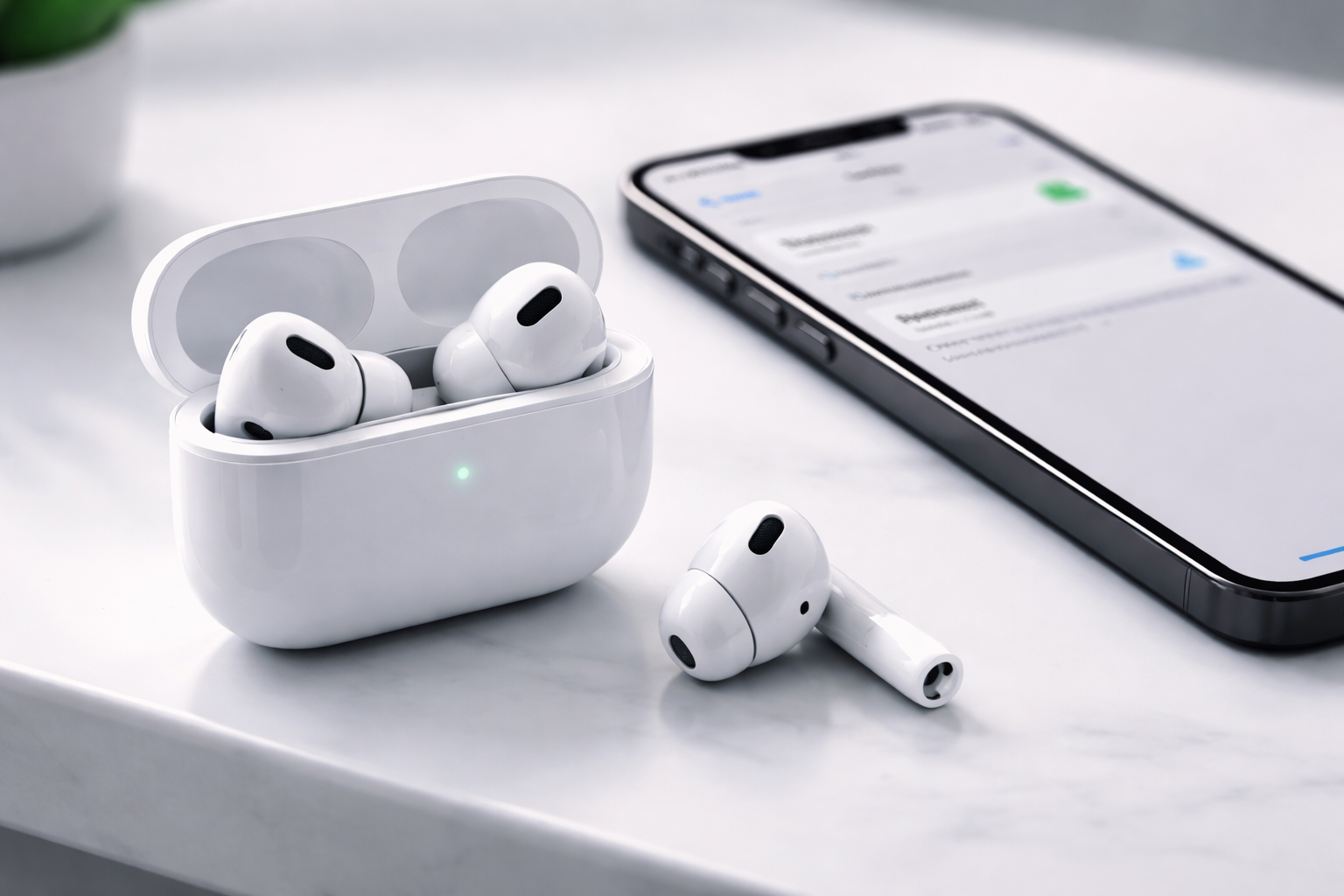
10 Hidden AirPods Features Every iPhone User Must Know (2026 Guide)
Most people are only using a fraction of what their AirPods can actually do. Not because they’re “bad with tech”… but because Apple buries some of the best stuff in menus you’d never think to open.
If you searched for airpods hidden features, you’re probably in one of two camps: you already own AirPods and want them to feel “worth it,” or you’re about to buy and want to know what you’re really paying for.
Either way, you’re about to unlock the kind of settings that fix annoying auto-switching, make voices clearer on calls, improve sound quality without any apps, and even let you answer calls with a nod.
Last updated: April 2026
Quick Answer: What are the best AirPods hidden features?
The best airpods hidden features for iPhone users are Headphone Accommodations (hidden EQ), Live Listen, Audio Sharing, Find My precision tracking, and device switching control. If you have AirPods Pro (or newer models like AirPods 4), Adaptive Audio and Personalized Spatial Audio can make them sound dramatically better with a few taps.
Want to unlock most of these in 5 minutes? Open your AirPods case near your iPhone → go to Settings → tap your AirPods name.
Affiliate note: If you’re realizing your AirPods model doesn’t support a few of the features below (especially Adaptive Audio), you can check current pricing here:
AirPods 4 deals |
AirPods Pro 3 deals.
(Prices move constantly—sometimes the “upgrade gap” is smaller than you’d expect.)
The “Settings Menu Playbook” (Where Apple hides the good stuff)
Before we get into the list, here are the only menus you’ll keep coming back to:
- Settings → Bluetooth → (i) next to your AirPods (or tap your AirPods name at the top of Settings when connected)
- Settings → Accessibility → Audio & Visual
- Settings → Accessibility → AirPods (appears when AirPods are connected)
- Control Center (press/hold volume slider → AirPods controls appear)
1) Headphone Accommodations (The “hidden EQ” that makes AirPods sound better)
This is one of the most underrated iphone airpods features. It’s basically Apple’s built-in sound tuning—no third-party EQ app needed.
How to turn it on
- Go to Settings → Accessibility → Audio & Visual
- Tap Headphone Accommodations
- Turn it On, then try Balanced Tone or Vocal Range
Why it’s worth using: If podcasts feel muddy, vocals feel buried, or you keep raising volume just to hear dialogue—this often fixes it immediately.
Best for: Podcasts, YouTube, calls, and anyone who says “AirPods sound… fine, I guess.”
2) Personalized Spatial Audio (Make the 3D effect actually sound “right”)
A lot of people try Spatial Audio once, shrug, and never touch it again—because they never personalize it. When it’s tuned to your ears, it can feel more natural and less “weird.”
How to set it up
- With AirPods connected, go to Settings → your AirPods
- Tap Personalized Spatial Audio → Personalize
- Follow the iPhone camera scan instructions
Pro tip: If Spatial Audio shows “not available,” it’s usually a compatibility or content issue. Try supported apps/content (Apple TV, Disney+, Netflix, Prime Video) and ensure your iOS is updated.
Best for: Movies, Apple TV, and anyone who wants that “mini home theater” feeling.
3) Adaptive Audio (AirPods 4 / Pro 2+ / Pro 3): the automatic mode most owners never configure
This is where Apple earbuds start feeling “smart.” Adaptive Audio adjusts what you hear depending on your environment—without you constantly switching between noise control modes.
What it can do (model dependent)
- Reduces harsh noise while keeping you aware of surroundings
- Conversation detection (lowers audio when you start talking)
- Wind noise reduction when you’re outside
How to enable it
- Open Control Center → press/hold the volume slider
- Tap Noise Control → choose Adaptive (if available)
Why it’s a game-changer: Walking into a café, hopping on a train, then stepping outside… and your audio just adapts. No fiddling.
If your AirPods don’t have this: This alone is a strong reason many people upgrade to newer models. See updated options here: latest AirPods Pro pricing.
4) Answer calls with head gestures (Hands full? Nod to accept, shake to decline)
This sounds like a gimmick until you’re carrying groceries, cooking, or mid-workout. It’s one of my favorite airpods tips tricks because it feels like a “secret” every time it works.
How to turn on Head Gestures
- Go to Settings → your AirPods
- Find Head Gestures (if supported) and enable them
Use it like this: Nod to accept a call. Shake your head to decline. No tapping, no “where’s my phone?” panic.
5) Audio Sharing: connect two pairs of AirPods to one iPhone
If you’ve ever tried to share a funny video on a plane or watch a show together without annoying everyone—this is the clean solution.
How to share audio
- Start playing audio on your iPhone
- Open Control Center → tap the AirPlay icon
- Tap Share Audio
- Bring your friend’s AirPods close and follow the pairing prompt
Best for: Couples traveling, parents with kids, or anyone who’s tired of the “one earbud each” compromise.
6) Live Listen: turn your iPhone into a remote microphone
Live Listen is marketed as an accessibility feature, but it’s genuinely useful in everyday situations—like hearing someone at a table when it’s loud, or catching announcements more clearly.
How to enable Live Listen
- Go to Settings → Control Center
- Add Hearing
- Now open Control Center → tap Hearing → turn on Live Listen
Important: Use this ethically. It’s designed for hearing support, not spying.
7) Find My precision tracking (Yes, you can find each earbud separately)
The “hidden” part: Find My isn’t just “here’s a dot on a map.” Depending on model, you can locate the left and right AirPod individually and see where they were last connected.
How to use it
- Open Find My → Devices → select your AirPods
- Try Play Sound (and choose left/right if shown)
- Use Directions / precision finding if available
Real-life win: One earbud falls between couch cushions, the other is still in the case. You can target the missing one instead of blasting sound on both.
8) Stop the annoying auto-switching between Apple devices
If your AirPods keep jumping from your iPhone to your iPad or Mac at the worst possible moment, you’re not alone. Apple calls it seamless. Many users call it chaos.
How to disable automatic switching
- Connect AirPods to your iPhone
- Go to Settings → your AirPods
- Find Connect to This iPhone
- Select When Last Connected to This iPhone (instead of Automatic)
Best for: People who use a Mac/iPad daily and are tired of audio being hijacked by a random notification.
9) Customize controls per ear (Different actions for left vs. right)
Most people leave the default controls forever. But you can usually assign different press-and-hold actions per side—so your left ear does one thing, your right ear does another.
Where to change it
- Go to Settings → your AirPods
- Look for Press and Hold AirPods (or control customization options)
- Set Left and Right to different functions (like Siri vs. Noise Control)
Why it matters: It cuts down how often you grab your phone—especially while commuting or working out.
10) Battery life hack: mono audio + one-ear listening (Double the runtime for calls/podcasts)
If you do lots of calls, meetings, or long podcasts, you can stretch battery life in a surprisingly practical way.
Two ways to do it
- Use one AirPod at a time (swap when one gets low)
- Enable Mono Audio: Settings → Accessibility → Audio & Visual → Mono Audio
Why it works: Stereo isn’t essential for spoken audio. You’ll lose some “wide” sound, but you’ll gain hours of usable listening across the day.
Which AirPods models support which hidden features? (Quick comparison)
Apple now sells AirPods in multiple tiers, so not every feature shows up for everyone. Here’s a simple “what you’re missing” guide.
| Feature | Works On | Why You’d Care |
|---|---|---|
| Headphone Accommodations (hidden EQ) | Most AirPods + iPhone | Clearer vocals, less “thin” sound |
| Personalized Spatial Audio | AirPods 3/4 + Pro models | More immersive movies/music |
| Adaptive Audio | Newer models (AirPods 4 / Pro 2+ / Pro 3) | Auto-adjusts to your environment |
| Head Gestures | Select newer models | Hands-free call control |
| Audio Sharing | Many AirPods generations | Two people, one iPhone |
| Live Listen | Many AirPods generations | Turns iPhone into a microphone |
| Find My (separate earbud tracking) | Model dependent | Actually find the missing bud |
If you’re choosing between models: For most people, the best “value jump” is getting a model that supports Adaptive Audio plus strong noise control. Check current reviews and pricing here: AirPods 4 (best budget pick) and AirPods Pro 3 (best overall).
Buying guidance: Which AirPods should you get in 2026?
Get AirPods 4 if you want the best “normal person” upgrade
- You want great day-to-day sound and modern features
- You care about convenience and portability
- You don’t need the absolute best noise cancellation
Get AirPods Pro 3 if you want the “everything feels premium” experience
- You travel, commute, or work in noisy spaces
- You care about better noise cancellation and a richer sound
- You want the most complete set of iPhone AirPods features
See AirPods Pro 3 deals & colors
Wait for the 2026 high-end AirPods Pro variant if you’re a Vision Pro / gestures person
Industry reports point to a premium-tier model adding infrared cameras for enhanced gesture recognition and deeper spatial experiences. That’s exciting… but it’s also likely overkill if all you want is better music and calls.
Rule of thumb: If you’re buying for audio, Pro 3 is the safe “buy now.” If you’re buying for future interaction (gestures/Vision Pro), waiting could make sense.
FAQs: AirPods hidden features (quick fixes & common questions)
How do I improve AirPods sound quality on iPhone?
Turn on Headphone Accommodations in Settings → Accessibility → Audio & Visual, then enable Spatial Audio (and personalize it if available). If your model supports it, try Adaptive Audio for automatic tuning in different environments.
Can I use Live Listen without people knowing?
Live Listen uses your iPhone’s microphone to send audio to your AirPods. Apple positions it as an accessibility tool—use it responsibly for legitimate needs (like hearing support), not for surveillance.
What’s the difference between AirPods Pro 3 and the 2026 high-end model?
The 2026 high-end tier is expected to add infrared cameras for gesture recognition and enhanced spatial/immersive experiences (especially alongside Vision Pro). It’s likely a premium option sold alongside Pro 3 rather than a simple replacement.
How do I get longer battery life from AirPods?
Use one earbud at a time (swap when low) and enable Mono Audio in Settings → Accessibility → Audio & Visual. This is ideal for calls and podcasts.
Why do my AirPods keep switching between my devices?
Go to Settings → your AirPods → Connect to This iPhone and set it to When Last Connected to This iPhone. This stops most unwanted switching.
Can I answer calls without touching my phone?
Yes—if your model supports it, enable Head Gestures and nod to accept calls or shake your head to decline.
What’s the best way to share audio with a friend?
Open Control Center → AirPlay → Share Audio, then bring the second pair of AirPods close and follow the prompt to connect.
Do all AirPods models have Spatial Audio?
No. Spatial Audio is generally available on AirPods 3, AirPods 4, and AirPods Pro models, and it works best with supported apps/content.
Conclusion: You already paid for these features—turn them on
The biggest “secret” with AirPods isn’t a hidden button—it’s that the best stuff is already sitting in your iPhone’s settings. If you only do three things today, make it these:
- Enable Headphone Accommodations (instant clarity boost)
- Fix device switching (instant sanity boost)
- Set up Personalized Spatial Audio (instant immersion boost)
If your AirPods don’t support features like Adaptive Audio and you want that “automatically perfect” experience, it may be time to upgrade. Check today’s AirPods prices here—especially during sales, the upgrade can cost less than you think.