How to Connect AirPods to iPhone (Step-by-Step Guide)
If you just unboxed a new pair of AirPods and your iPhone isn’t doing that “magic pop-up” thing… you’re not alone. Most people expect a 10-second setup, and when it doesn’t happen, it feels weirdly stressful for something so “Apple.”
The good news: once you know the right steps (and the few common gotchas), you can connect AirPods to iPhone in under a minute—whether they’re brand-new, previously used, or acting stubborn.
Quick Answer: How to Connect AirPods to iPhone
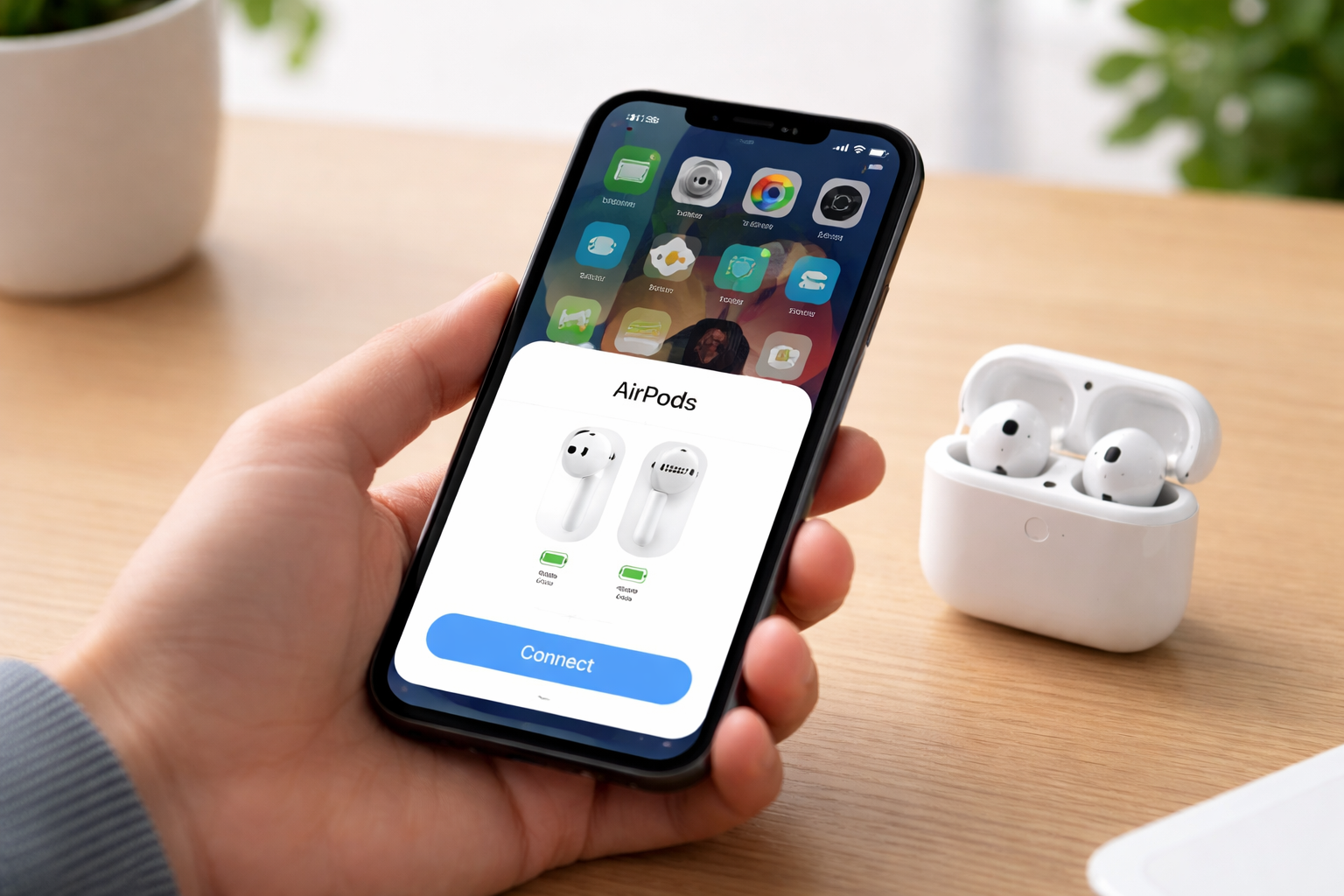
To connect AirPods to iPhone, turn on Bluetooth, then open the AirPods case next to your unlocked iPhone. Tap Connect when the setup animation appears and follow the on-screen prompts. If no animation shows up, pair manually from Settings > Bluetooth.
Before You Start: 30-Second Checklist (Avoids 90% of Pairing Issues)
- Unlock your iPhone and stay on the Home Screen.
- Go to Settings > Bluetooth and make sure Bluetooth is On.
- Make sure your AirPods have some charge (a low battery can cause flaky pairing).
- If these are used AirPods, confirm they’re not still linked to someone else’s Apple ID in Find My (more on that below).
Step-by-Step: Connect New AirPods to iPhone (Automatic Setup)
This is the easiest (and most common) method—Apple’s “pop-up animation” setup.
For AirPods (1st–4th gen) and AirPods Pro (1st–3rd gen)
- On your iPhone, confirm Bluetooth is On (Settings > Bluetooth).
- With both AirPods inside, open the charging case.
- Hold the open case next to your iPhone.
- Wait for the setup animation, then tap Connect.
- Follow any prompts (Siri, noise control, personalization), then tap Done.
For AirPods Max
- Take AirPods Max out of the Smart Case.
- Hold them near your unlocked iPhone.
- Tap Connect when the animation appears and follow the prompts.
Pro tip: After you pair once, your AirPods usually auto-sync to other Apple devices signed in to the same Apple ID (iPad, Mac, etc.). That’s one of the biggest reasons people stick with AirPods.
How to Pair AirPods to iPhone Manually (If No Pop-Up Appears)
If the animation doesn’t show up, don’t panic. Manual pairing works every time—as long as you put the AirPods into pairing mode.
Manual Bluetooth AirPods Setup (AirPods / AirPods Pro)
- Go to Settings > Bluetooth on your iPhone.
- Open the AirPods case (leave AirPods inside).
- Put AirPods into pairing mode:
- Most models: Press and hold the button on the back of the case until the light flashes white.
- Some newer models: Double-tap the front of the case to trigger pairing (then look for the flashing white light).
- On your iPhone, under Other Devices, tap your AirPods name to connect.
Manual Pairing (AirPods Max)
- Go to Settings > Bluetooth.
- Press and hold the noise control button until the status light flashes white.
- Select AirPods Max under Other Devices.
If you’re trying to pair AirPods iPhone for the first time and manual pairing doesn’t work, skip down to the troubleshooting section—especially the “linked to another Apple ID” issue.
How to Reconnect AirPods to iPhone (Already Paired)
If you’ve paired before and they just won’t connect right now:
- Open the case near your iPhone and wait a few seconds.
- Or go to Settings > Bluetooth and tap your AirPods name.
- If audio is playing through your iPhone speaker, open Control Center > tap the AirPlay audio icon > choose your AirPods.
Common Problems (and Fixes) When AirPods Won’t Connect to iPhone
1) Bluetooth is on… but the AirPods still don’t show up
- Toggle Bluetooth Off and back On (Settings > Bluetooth).
- Close the AirPods case, wait 10 seconds, reopen it near your iPhone.
- Try manual pairing mode (white flashing light) again.
2) AirPods are connected, but audio is coming from the iPhone
- Open Control Center > tap the AirPlay icon > select your AirPods.
- Put both AirPods in your ears (some settings can pause audio if only one is in).
3) “Not Your AirPods” or they’re linked to another account (Find My lock)
This happens a lot with second-hand AirPods. If they’re still associated with someone else’s Apple ID, you may be blocked from fully pairing/using features.
- Ask the previous owner to remove them from their Apple ID in Find My.
- If you bought used, this is why buying from a trusted retailer matters.
4) Forget and re-pair (best fix for weird bugs)
- Go to Settings > Bluetooth.
- Tap the i next to your AirPods.
- Tap Forget This Device.
- Re-pair using the automatic or manual steps above.
Which AirPods Are Best If You Want the Smoothest iPhone Setup? (2026 Buying Notes)
If you’re here because you’re deciding what to buy (or upgrading), pairing speed and reliability are a real difference—especially with newer chips that improve switching and syncing.
Quick comparison
- AirPods 4: Best “easy Apple life” value for most people. Great everyday pick, fast setup, strong iPhone integration.
- AirPods Pro (latest): Best if you want noise cancellation and a more premium in-ear experience.
- AirPods Max: Best if you want over-ear comfort and premium sound—expensive, but unmatched if you wear headphones for hours.
My practical advice (so you don’t overthink it)
- If you want the simplest experience and great sound: AirPods 4.
- If you travel, take calls, or hate background noise: AirPods Pro.
- If you work long sessions and prefer over-ear: AirPods Max.
Want the “it just works” setup? Buy genuine AirPods from a trusted store (Apple or a reputable retailer). Knockoffs often mimic the look but fail at the seamless apple airpods connect experience—especially the pop-up pairing and iCloud syncing.
Check current deals: AirPods often start around $129 (prices vary). If you spot a good discount, you can be fully set up in minutes using the steps above.
After You Connect: 3 Quick Things Worth Doing
- Rename your AirPods: Settings > Bluetooth > tap i > Name (helpful if you have multiple pairs nearby).
- Check battery levels: Open the case near iPhone or add the Batteries widget.
- Confirm iCloud sync: If you’re signed into the same Apple ID, they should appear on your iPad/Mac automatically after the initial setup.
FAQs: Connect AirPods to iPhone
How do I connect new AirPods to iPhone?
Turn on Bluetooth, open the AirPods case next to your unlocked iPhone, then tap Connect on the setup animation and follow the prompts.
Why won’t my AirPods pair with iPhone?
Most commonly: Bluetooth is off, the AirPods are low battery, they’re not in pairing mode (white flashing light), or they’re still linked to another Apple ID via Find My. Try “Forget This Device” and re-pair.
How to manually pair AirPods to iPhone?
Go to Settings > Bluetooth, put AirPods into pairing mode (usually press/hold the case button until the light flashes white), then select them under Other Devices.
Do AirPods auto-connect to other Apple devices?
Yes. After the first iPhone setup, AirPods usually sync across other Apple devices signed into the same Apple ID via iCloud (as long as they support AirPods).
How do I forget and reconnect AirPods?
Settings > Bluetooth > tap the i next to your AirPods > Forget This Device. Then reconnect using the automatic pop-up or manual Bluetooth pairing.
Is pairing different for AirPods Pro vs regular AirPods?
The pairing steps are basically the same. AirPods Pro may show extra setup prompts for noise control, ear tip fit, or Siri/audio features.
Can I connect AirPods Max if the animation doesn’t show?
Yes. Use manual pairing: Settings > Bluetooth, then press and hold the noise control button until the light flashes white, and select AirPods Max.
What iOS version do I need?
AirPods work best on modern iOS versions; older AirPods generally work on iOS 10+, while newer models tend to perform best on newer iOS releases for the smoothest syncing and features.
Conclusion: Get Connected in Under a Minute
For most people, the fastest way to connect AirPods to iPhone is the automatic pop-up: Bluetooth on, open case near the iPhone, tap Connect. If that fails, manual pairing in Bluetooth settings and a quick “Forget device” reset solves almost everything.
If you’re still shopping and want the least friction, stick with genuine AirPods from a trusted retailer—then use this guide and you’ll be listening (and taking calls) within minutes.